Files, import & export
Documents
File → Save / Open work with .bearcad files. A document is self-contained: embedded
fonts (Text) and tracing images travel inside it,
so it opens identically on any machine. In the browser app, saving downloads the file and
opening picks one from disk.
Double-clicking a .bearcad file opens it in BearCAD: the macOS .app declares the type
in its Info.plist; on Windows and Linux the first launch (or bearcad install-cli)
registers the association for the running binary.
On save, BearCAD writes a Home zoom-to-fit preview (black outline so it reads on light and dark backgrounds) into the file and publishes it as the OS thumbnail — Finder on macOS, free-desktop file managers on Linux.
On macOS, Space-bar Quick Look opens an interactive 3D view of the model (rotate / pan / zoom, same gestures as STL). Save the file once so the mesh snapshot is embedded.
Undo (⌘/Ctrl+Z) reverts whole steps — a fillet or a boolean undoes as one unit.
The window title (and each tab) shows the current file name and a leading *
whenever there are unsaved changes; the * clears once you save (or if you undo all the
way back to the last saved state). Unsaved edits sit in an open SQLite transaction —
another app opening the file still sees the last save. Quitting with unsaved changes
asks whether to Save, Don't Save, or Cancel so a stray ⌘Q doesn't lose work.
Open shows cached tessellation when the body's fingerprint (inputs + OCCT version)
still matches. File → Rebuild Geometry (or bearcad --rebuild) discards that
cache and rebuilds. See Scripting
to rebuild or export a preview from a script.
Tabs
⌘/Ctrl+T opens a new tab (blank document). ⌘/Ctrl+W closes the active tab. ⌘/Ctrl+1–9 switches to that tab; ⌘⌥←/→ (Ctrl+Alt+Left/Right) moves to the previous/next tab, wrapping. Closing the last view of a dirty document asks to save first; closing the last tab of the last window opens a blank document instead of quitting. Drag tabs to reorder; right-click a tab for Duplicate Tab (same document) (independent camera/tool, shared document) or Move to New Window — that window is a full application window (same toolbar, panes, and menus as the first). On macOS the tab strip sits in the titlebar next to the traffic lights.
Import
- File → Import → BearCAD File… — another BearCAD document becomes a reusable unit; see Importing BearCAD files.
- File → Import → STL… — a triangulated mesh becomes a body.
- File → Import → STEP… — BREP from other CAD tools, curved surfaces included, tessellated into a body.
- File → Import → Image… — a PNG/JPEG to trace over; see Tracing images for scale calibration.
- File → Import → Lua Script… — a document export from Export as Lua; warns if the current document is not blank.
- File → Import → McMaster-Carr… — the catalog in a window; see McMaster-Carr parts.
The Import button on the toolbar offers the same entries.
Export
- File → Export → STL… / 3MF… — for 3D printing (mesh). Right-click a body row in the
Elements pane to export just that body, or right-click a component to export everything
inside it (and its nested components) as one file. 3MF keeps each body as a separate
object and writes its material color (
m:colorgroup), so multi-color models open in Bambu Studio with each color already on its own filament slot. Shadow bodies (operation inputs, or any body marked Make shadow body in the Elements pane) are left out of whole-document and component export. - File → Export → STEP… — real BREP (planar and curved surfaces) for other CAD apps. Right-click a body or a component row to export just that body or the whole component.
- Technical drawings export as vector PDF or SVG from the drawing workbench — see Drawings.
McMaster-Carr parts
File → Import → McMaster-Carr… opens mcmaster.com in a window. Find a part the way you normally would, download its STEP, and it lands in the document as a body — not in your Downloads folder.
Search McMaster-Carr in the command palette opens it with the
search already run — type socket head screw, or a part number to go straight to that page.
Their site does the searching, the sizes and the drawings, so the window is their site. Links that lead off it open in your normal browser.
The window is a window of its own — move it to a second monitor and keep it open while you model. Closing BearCAD closes it too.
If a download doesn't arrive, the log says what the window did with it — see Troubleshooting.
Importing BearCAD files
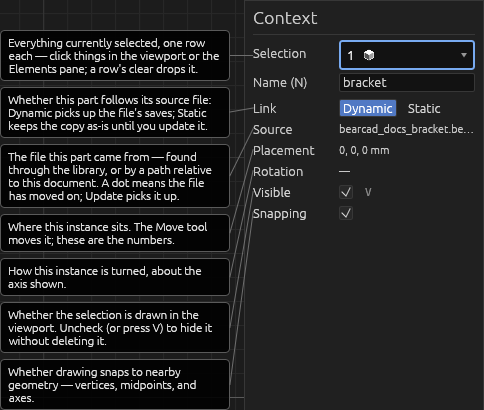
File → Import → BearCAD File… brings another .bearcad document in as a unit: a
reusable part with its own parameters.
- The importing document embeds a copy, so it opens and rebuilds even with the source file absent.
- Importing the same file again adds a second instance sharing the one embedded copy.
- Each instance gets a name from the file stem (
bracket,bracket2, …). - A file under the library directory is remembered by its library path, so it resolves on any machine with the same library. Any other file is stored relative to the importing document — save the document once before importing.
- Importing a file that imports the current document is refused; imports can't cycle.
Each instance is one row in the Elements pane — rename, hide, or delete it like any
element (deleting removes just that instance). Renaming an instance rewrites every
name.parameter reference to it, so a rename never breaks the model; a name another
instance already uses is refused. The row's triangle expands a read-only look
inside; everything in a unit is edited in its source file, not here. The node graph shows
an instance as a single node — enable Unit contents in the pane filter to see inside.
Read-only doesn't mean inert: a unit's geometry is a full target, drawn in its own warmer tone so it reads as not-yours-to-edit.
- Its corners and edge midpoints fill Move's start/end point pickers, and its faces, edges, and vertices fill any tool's picker.
- Move it: pick the instance with the Move tool — snap or free translation moves the instance's placement itself, so everything referencing it follows.
- A unit may itself import other units; a nested part reads as one row inside its parent's contents, at any depth.
- Measure to it: select a unit edge (or corner pair) and add a dimension parameter as usual. A dimension to a unit edge follows the unit when an instance parameter changes.
- Sketch on it: pick a flat unit face with the Sketch tool. The face's own outline appears in the sketch as projected construction edges — dimension and constrain to them; they re-project when the unit's parameters change. If the face later disappears, the sketch reports unhealthy instead of landing somewhere wrong.
- Cut into it: an extrusion drawn on a unit face with Output = Cut carves the unit — the result is your document's own body; the unit file is never touched.
- Combine with it: pick a unit into either side of any boolean. A unit can feed several operations at once; while consumed it ghosts in the viewport like any operation input.
- Exports include unit geometry, so an assembly prints whole.
Dynamic (the default) follows later changes to the source file: the unit updates when you open the document and whenever the source is saved while it's open — including saves from another BearCAD window, which land immediately. A burst of rapid saves rebuilds once. Static freezes the imported copy — an amber dot on the instance row shows when the source has moved on, and right-click → Update from source file picks it up (every instance of the unit updates together; one undo puts the previous copy back). Either way the document embeds its own copy, so it opens and builds with the source file absent. See Scripting to import or sync a unit from a script.
Export as Lua
File → Export → Lua Script… writes a deterministic script that recreates the current
document (no bearcad.ui steps) — see Scripting. File → Import →
Lua Script… runs one; a non-blank document warns first. Running with --show-commands
still echoes each GUI action as its bearcad.* call live.