BearCAD
An AI experiment. BearCAD is an experiment to see what AI can do. The application — its geometry engine integration, tools, documentation, and even the screenshots in these docs — is built almost entirely by an AI working from plain-English feature requests and bug reports. Expect rough edges, and expect them to get fixed fast.
BearCAD is a parametric 3D CAD app for designing real parts on your own computer — nothing is uploaded anywhere. You sketch 2D shapes, give them exact dimensions, and pull them into solid bodies you can export for 3D printing or other CAD tools (STL and STEP).
Parametric means your design stays editable: dimensions can be named values like leg or
thickness, and changing a value later reshapes the whole part to match.
Small and fast
CAD software is famously heavy — a mainstream package like Autodesk Fusion asks for 8–16 GB of disk space and greets you with a splash screen. BearCAD is a different animal:
- The whole app is a tiny download — the entire installation, industry-grade geometry kernel included, is orders of magnitude smaller than the big names.
- It launches in about half a second, cold, straight to a fully interactive window. No splash screen, no sign-in, no background updater — click, and you're sketching.
- It's a single self-contained executable, so installing is just downloading it — easy to keep on a USB stick or drop onto any machine.
Under the hood BearCAD runs on proven engineering libraries: solid geometry is OpenCASCADE (OCCT), the industry-grade BREP kernel behind many professional CAD packages, and sketch constraints are solved by SolveSpace's constraint solver — in the desktop apps and in the browser alike.
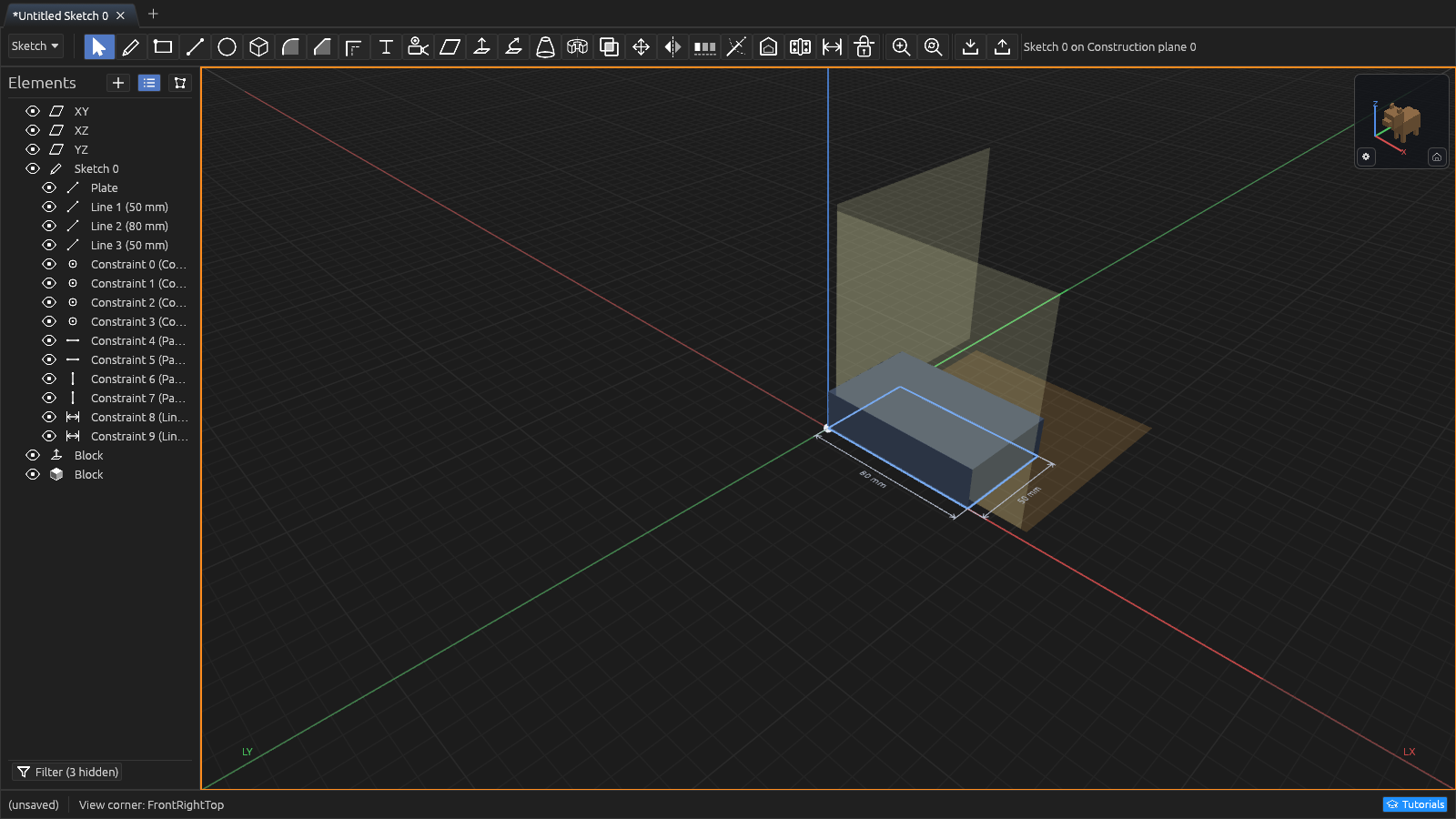
The window has four main areas:
- The 3D viewport (center) — where you draw, build, and look at your part.
- The Elements pane (left) — every sketch, feature, and body in your design, as a list, tree, or graph. Hover a row to see it light up in the viewport; hover a step — an extrude, a combine, a component, a joint — and what it made lights up instead, in a color of its own.
- The Context pane (right) — options for whatever tool or selection is active.
- The Parameters pane (right) — your named values, editable any time.
Where to go next
- Quickstart — build a real part (an angle bracket) step by step in about ten minutes.
- Why use BearCAD? — honest comparison with Fusion, SolidWorks, FreeCAD, and TinkerCAD.
- Parameters & units — named values, expressions, and units.
- Materials — colors on bodies, the default palette, and 3MF.
- Modeling Tools — what each modeling tool does.
- Drawing Tools — the technical-drawing workbench's tools.
- Navigation — how to move around.
- Files, import & export — documents, STL/STEP, and drawings output.
- Scripting — for programmers: drive BearCAD from Lua scripts.
Getting BearCAD
Name your price.
- Run it in your browser — nothing to install, full geometry engine included. Documents save as downloads.
- Install on a Chromebook — same web app; in Chrome use Install BearCAD / Install app so it opens like any other app.
- Download it for macOS, Windows, or Linux — adds Lua scripting and a command line. When a newer release exists, a green Update badge appears in the status bar's corner — click it to install the new version in place, then click Restart to relaunch into it.