Selection Exploder
When several things overlap under your cursor, clicking the exact one is a guessing game. Park the cursor over the pile and press Space to fan the crowd out into spaced-apart handles.
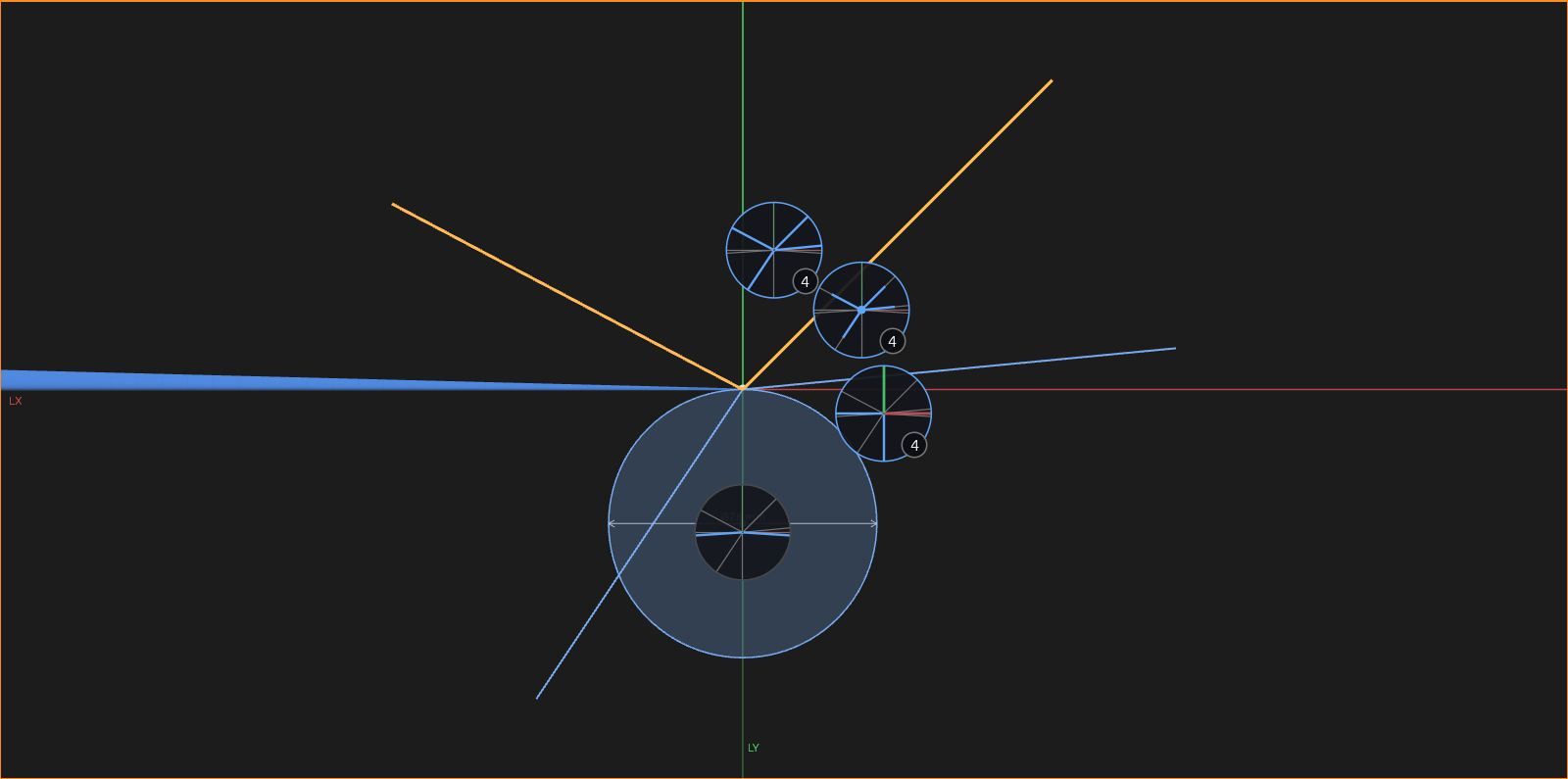
Each handle is a round loupe: a magnified view of the pick spot with its one element highlighted in blue and the rest dimmed behind it, joined by a thin line back to where it really is. Coincident line ends are told apart by a short stub along each line. What's in a loupe wears its own color, so it looks like what's in the 3D view: faces and whole bodies take their material, the X/Y/Z axes their red/green/blue, and a construction plane its shaded rectangle. The loupe under your cursor shows its thing the way the 3D view would if you were pointing at it, and wears a bright ring. Something too big to show at that magnification — a whole body, a face far wider than the pick spot — is framed whole in its loupe instead, so there's always something to recognise.
A loupe sits on the side its element runs off to — the line heading up-left gets a loupe up-left, and a vertex follows the little leg drawn in its loupe — so you can aim at the one you want before you read it. Loupes only slide apart where they would otherwise overlap, which keeps a crowd that all leans one way fanned out on that side.
- Hover a handle to light it and its real thing yellow.
- Click to select it; hold Shift while clicking to keep the fan open and pick several in a row.
- Shift+Space opens the fan in one-shot add mode: the next pick is added to the selection (even if you release Shift) and the fan dismisses.
- Scroll to zoom the loupes in.
- Press Space or Esc, or click empty space, to dismiss.
The fan holds what the armed picker takes, one handle per thing it would pick — so the Slice tool's Cutters fans planes and flat faces, while its Targets fans one handle per body. It works with every tool that picks, and every kind of thing: vertices, lines, circles, body edges and faces, whole bodies, even constraint badges. The camera holds still while the fan is open. It's how you pick one face of a body with the Select tool, which otherwise selects the whole body.
It works on a drawing page too, where it fans out the view's edges, the card and any note under the cursor. Two of a body's edges can project to exactly the same line in an orthographic view; the fan is how you dimension the one you meant.
See also
- Select — the default tool for looking and picking.
- Navigation — camera, views, and the command palette.