Dimension
Shortcut: D
Dimensions make geometry exact — and keep it that way. Click a line (or a rectangle edge, or a circle): the dimension appears straight away and follows your cursor. Click again to drop it where you want it, then type the value and press Enter.
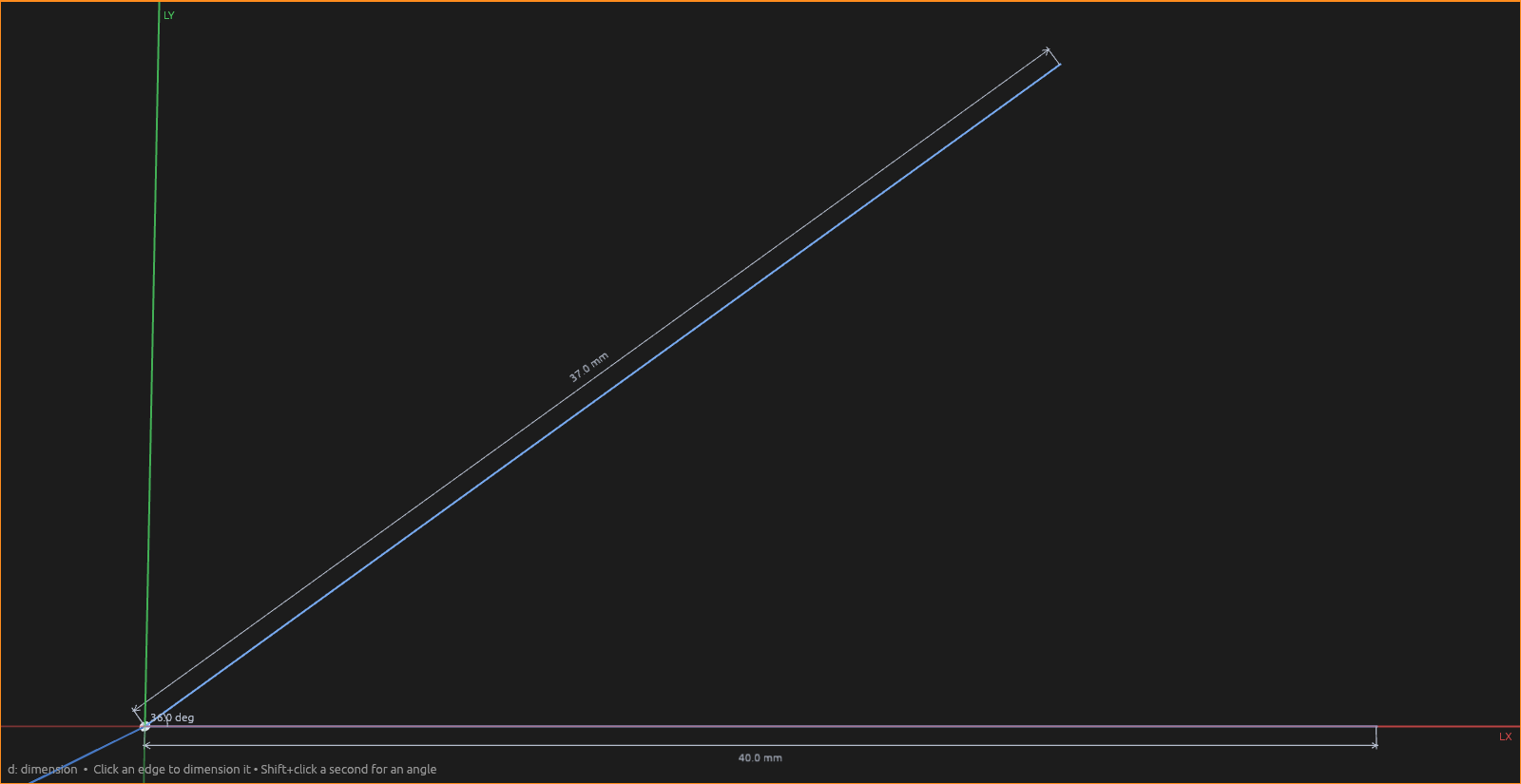
- Shift+click a second line for the angle between them.
- A plain click re-targets; double-click an already-dimensioned thing to change its value.
- The Context pane mirrors the value (Span or Angle) with a ✓ to commit.
- Value fields accept expressions:
25,2.5in,leg/2 + 5, or a new parameter created on the spot by typingname=value— see Parameters & units. - Dimension labels are draggable, and double-clicking one reopens it for editing.
- For angles, two crossing lines enclose two different angles — move the cursor into the one you mean before clicking.
- When a sketch is drawn on a body's face, you can dimension against that face's own edges — e.g. "this hole's center is 10 mm from the top edge." On a circular face, click the origin (the face's centre) and the hole to set how far it sits from the centre.
A fully dimensioned shape draws in the fully-constrained color and can no longer be dragged out of shape — that's the goal: a sketch that only changes when you change a number. Until it's also located (say, a corner pinned to the origin), the whole shape still drags around as one piece, dimensions intact.
Measuring
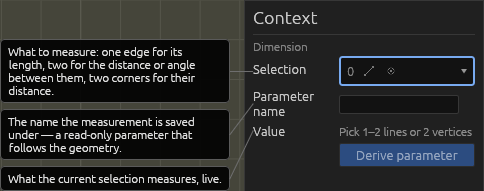
Outside a sketch the Dimension tool measures rather than constrains, and the Derive parameter block is there in a sketch too. Pick what to measure — one line or body edge for its length, two parallel lines for the distance between them, two non-parallel lines for the angle, or two vertices (sketch points or body corners) for their distance — and the Context pane shows the live Value with a Parameter name box prefilled with a sensible name, ready to edit. Press the blue Derive parameter button (or Enter): the measurement is recorded as a derived parameter. It lands in the Parameters pane, re-measures as the geometry changes, and works in any expression.
Help