 Extrude
Shortcut: E
Extrude turns a flat sketch face into a solid — or carves into an existing one. Click one or more faces in the same sketch plane, set a depth, and press Enter (or the Extrude button in the panel).
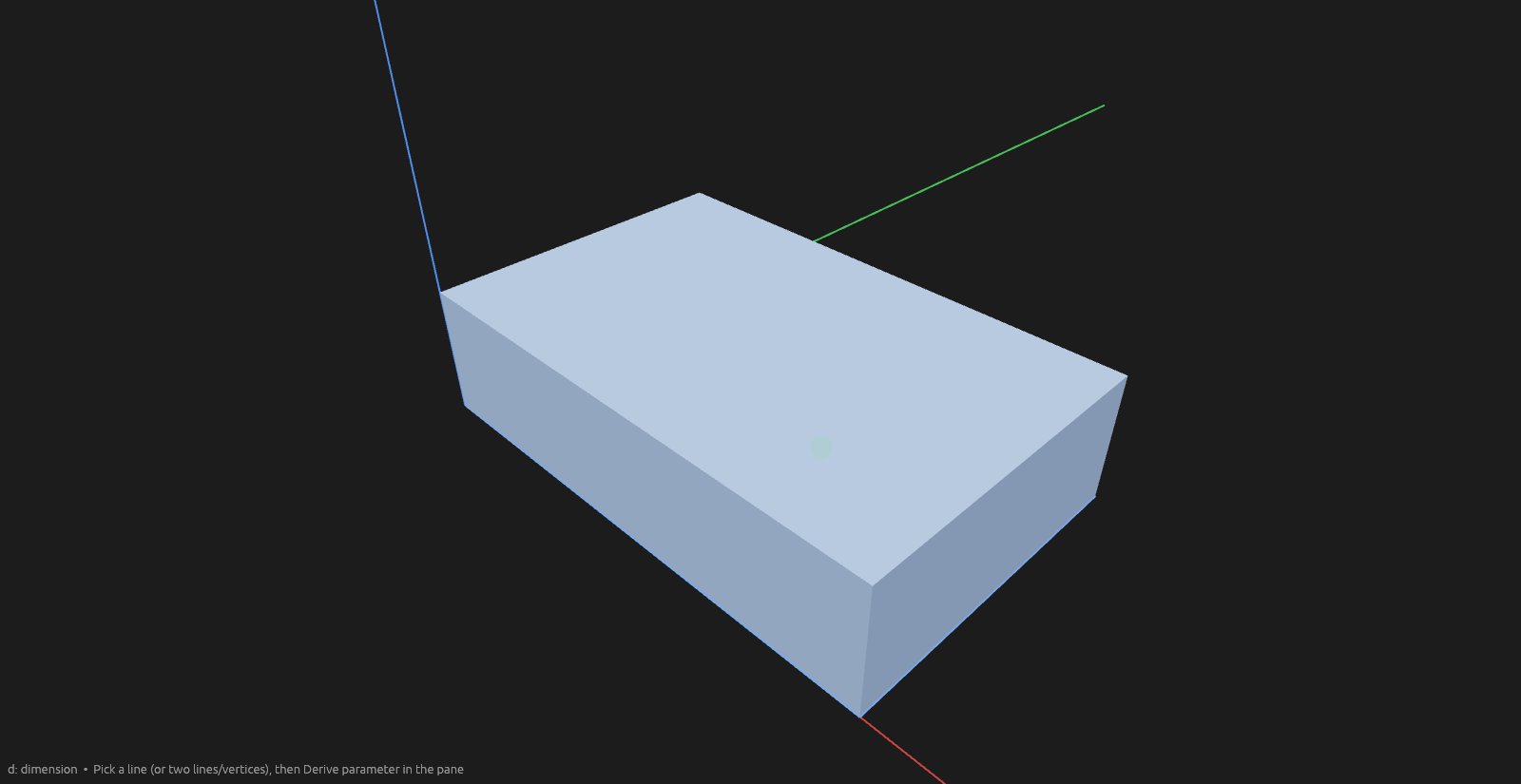
Set the depth any of these ways:
- Drag the arrow handle in the 3D view.
- Type a distance (expressions work) in the Distance field — in the 3D view or the panel; the two mirror each other.
- Extrude up to a plane or face — see below.
Nothing commits until you press Enter or the Extrude button, so you can keep adjusting the distance or target first.
- With two concentric circles, click between them to extrude just the ring.
- Click any flat face of a solid — an extrusion's cap or side wall, or a revolved body's flat end — to pull it straight out or push it in, no separate sketch needed.
- Sketch lines drawn across a face divide it: two lines ruled over a box's top make three regions, and each extrudes on its own. The lines have to reach all the way across — one that stops short divides nothing.
- Double-click a finished extrusion (or right-click → Edit) to change its faces or depth later.
- Typing a digit jumps straight into the distance field.
- Flip extrudes to the other side of the sketch plane, keeping the same depth.
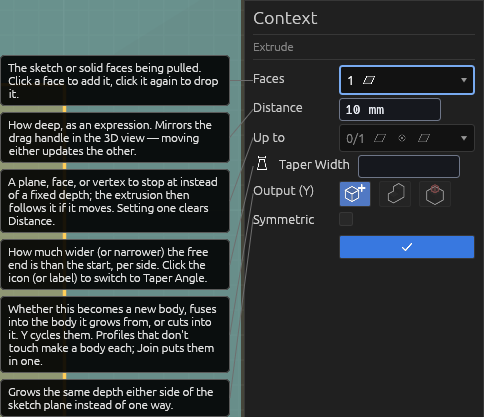
- Taper changes the end face size. Click the icon to switch between distance (mm added per side — a 10×10 square with taper 5 ends 20×20; circles add to the radius) and angle (draft against the normal; −45° on a 10-high 10×10 collapses to a point at height 5). Negative values shrink; past collapse the end is a point (angle mode also shortens the solid). Angle taper is limited to −90°…89° — values outside that, or that would make a huge solid, are clamped and the field warns.
Help
Extrude up to something
Drag the handle onto a face, plane, or vertex and the depth snaps to it and stays tied to it — if that target moves later, the extrusion follows. Works for slanted surfaces too. The target shows in the panel's Up to picker; you can also focus that picker and click the plane or face directly, or clear it there to go back to a plain distance. Setting a target clears the Distance field, since the depth then comes from the target.
For a face you can't see — the far side of the solid you're cutting through — focus Up to and press Space over the body for the Selection Exploder, then click that face's loupe.
Adding to or cutting a body
Extruding from a face of an existing body offers three choices:
- New body — the extrusion stands alone.
- Add — it fuses into the existing body.
- Cut — it's subtracted. Extruding backward through a body switches to Cut automatically. This is how holes are drilled: sketch a circle on a face, extrude it through, Cut.
Extruding several profiles at once
Pick as many profiles as you like. Ones that don't touch each become their own body under New body; Join puts them all in a single body instead.
Overlapping shapes
Clicking inside an overlap picks just that region — the intersection, or one shape minus the other — so overlapping outlines build shapes neither makes alone.