 Joint
Joint
Shortcut: J — pressing it again cycles the joint type.
Joint connects two parts — bodies, components, or imported units — with a kinematic relationship: a hinge swings, a slider slides, a screw turns and advances. The joint poses the moving part; it never changes any shape.
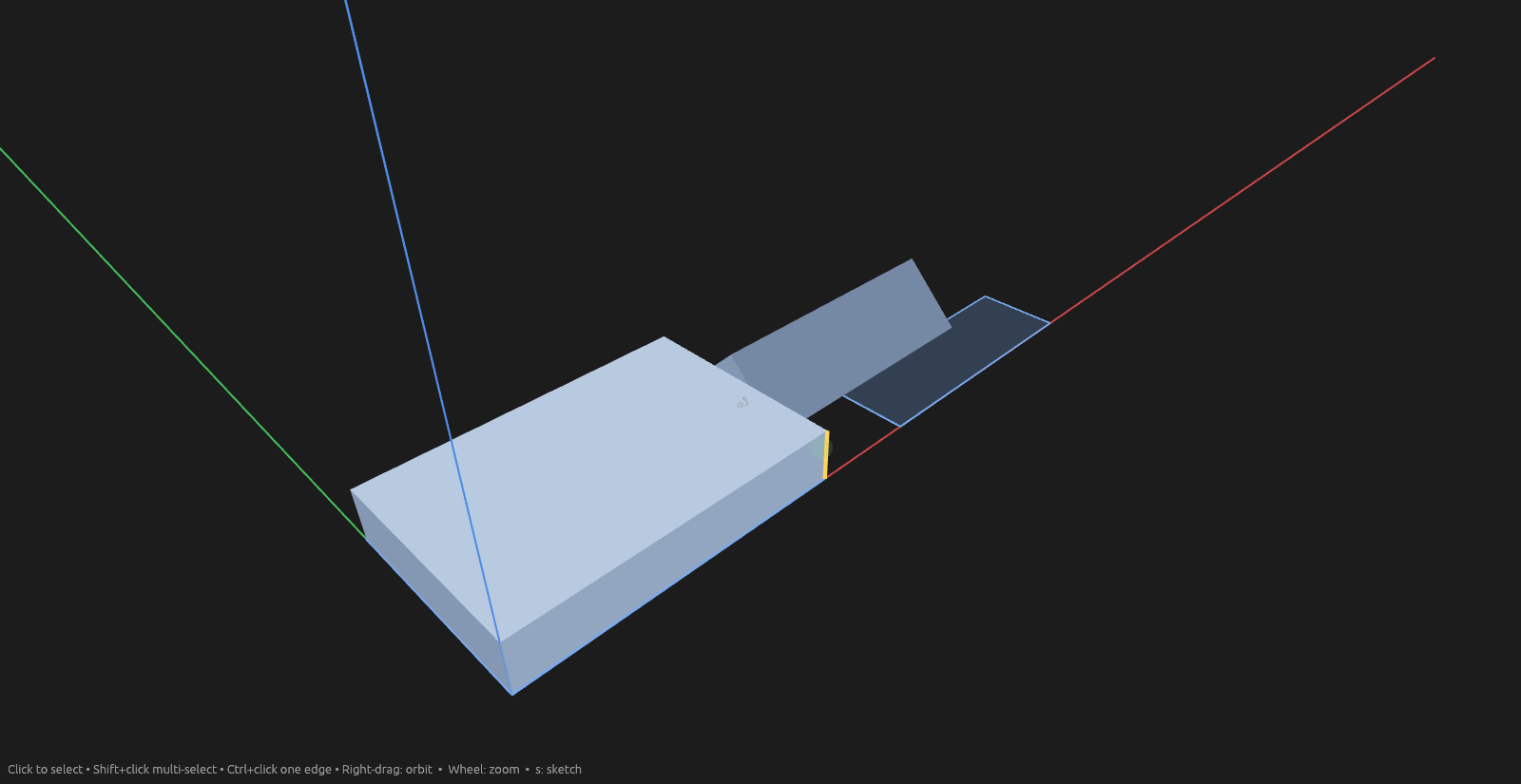
How to use it
- Pick the Joint tool. Parts already selected come along as the joint's parts.
- Choose the Type: rigid, slider, revolute, cylindrical, planar, ball, pin-slot, or
screw — each with its own icon in the dropdown, or press
Jagain to step through them. - Click the part that moves, then the part that holds it. They fill the Moving and Fixed slots in that order. (Rigid takes any number of parts in one list instead — nothing moves.)
- Under Mate, click a face on the moving part, then the face it lands on. The part goes flush. Two clicks is the whole of most mates.
- Line it up: pair a corner or an edge on each part. Enter (or the blue button) commits.
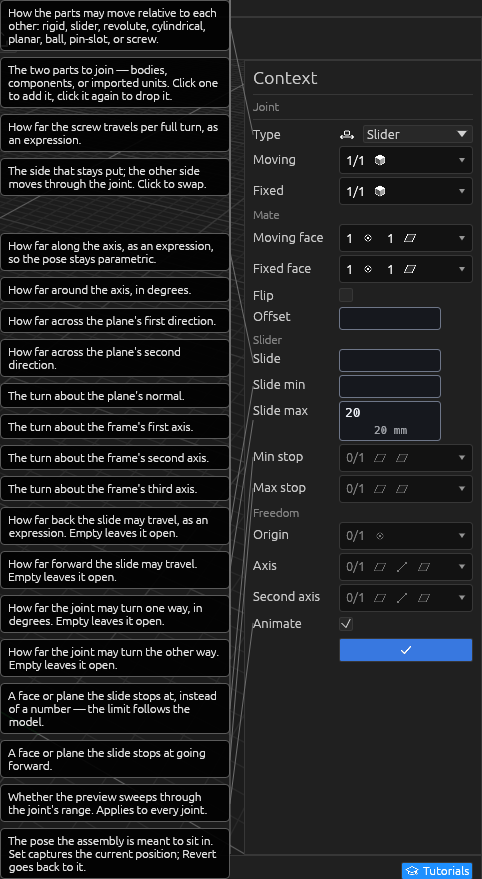
Below the Mate section, a section named for the joint type holds its own values and travel limits.
Skip the mate to join parts right where they sit — the joint records the existing relationship and nothing moves.
Mating
Put this face on that face.
Mating is a move — the same one the Move tool makes, in the same modes. Most joints want Face Snap: for each side, click a face, then click the point on that face that should meet the other. A face offers its corners, the middle of each edge, and its centre — nine points on a rectangular one. The moving part lands with its point on the fixed one's, surfaces together.
Once you've picked a face, only points on that face are on offer, so the second click can't land anywhere it doesn't belong. You can reach a corner from just outside the face, and what highlights is always what a click takes. A line joins the two points once both are picked. Flip puts it on the other side, Gap holds it off by a distance, and Turn spins it about the face it sits on. All of them are expressions, like any other.
The other modes are there when a joint isn't going flat onto anything: Point Snap lands a point on a point, Free takes typed amounts and turns, and In place says leave it where it is — no picks, no values, for parts already sitting where they belong.
The fixed side takes a datum plane, a world axis or the origin too, which is how the first part of an assembly is grounded.
While the joint is being created or edited, the two parts are colored by their role — green for the one that moves, blue for the one holding it — so you can see which is which without reading the pane. They go back to their own colors once it's committed.
The moving part also sweeps back and forth through its range, showing the motion before you commit. Animate turns that sweep off — one switch for every joint.
Freedom
Freedom in the Context pane says how the joint works: an Origin, an Axis and a Second axis. The Axis is what a Slider slides along and a Revolute turns about; the Second axis fixes the roll, which a Planar or Ball joint needs.
Mating on a face fills the Axis in for you — the fixed face's own direction — so most joints need nothing said. Change any of them to move the joint's freedoms somewhere else without disturbing where the mate put the part. A joint mated some other way starts with no axis, and asks for one.
An Axis takes anything with a direction: a flat face or datum plane (its normal), a body edge or world axis, or a hole's centre line. The Origin takes a point.
The kinds
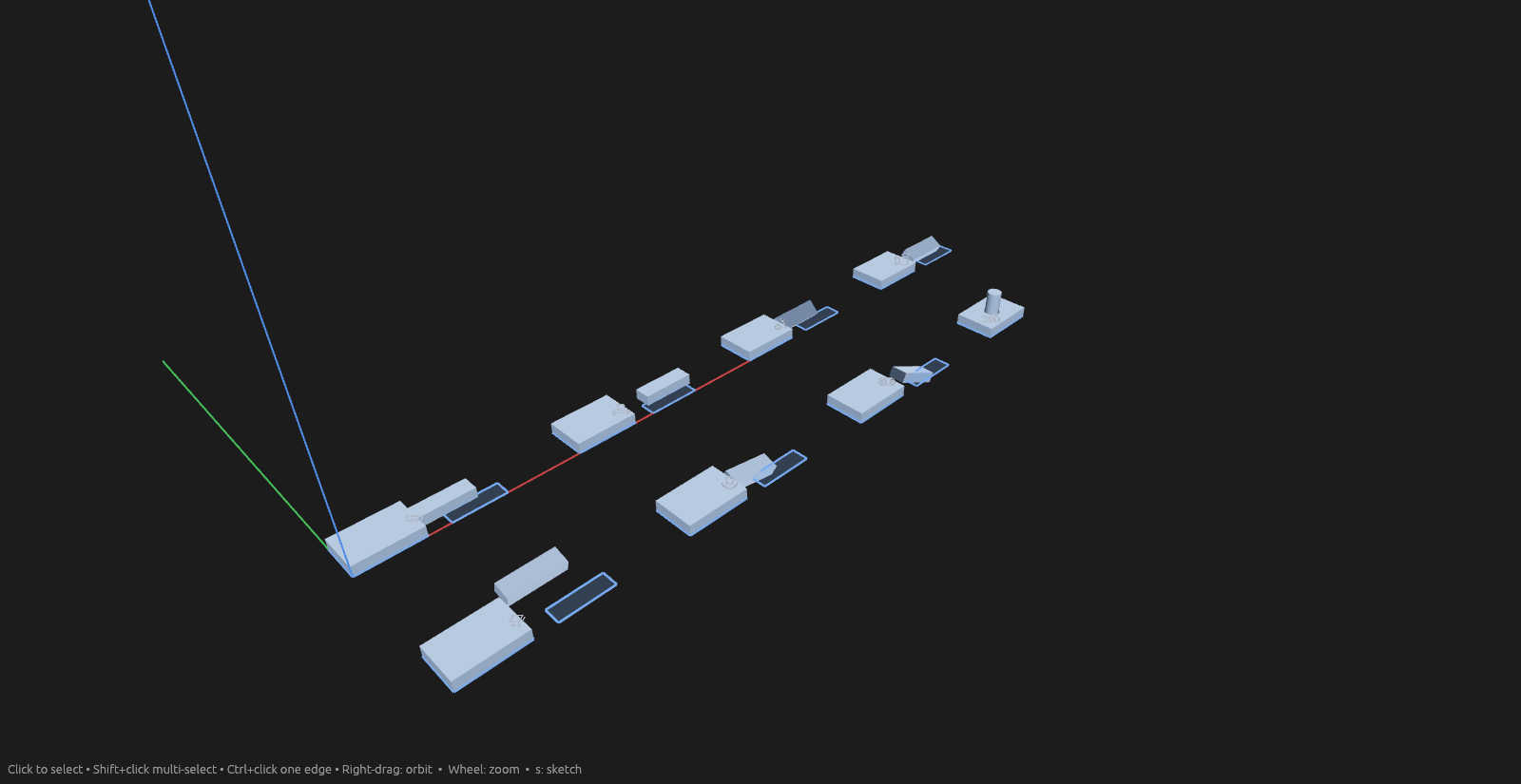
| Kind | Motion | |
|---|---|---|
 | Rigid | None — the parts move as one. Takes any number of parts. |
 | Slider | Slides along the axis. |
 | Revolute | Turns about the axis. |
 | Cylindrical | Slides and turns about the same axis. |
 | Planar | Glides across a plane and spins about its normal. |
 | Ball | Turns freely about all three axes. |
 | Pin-slot | Slides along one axis while turning about another. |
 | Screw | Turns, advancing by the lead per full turn. |
Moving and fixed
The Fixed part stays put; the Moving one moves through the joint. Rigid instead takes any number of parts in one list, with a Base row to say which of them holds still. Joints chain: a part driven by one joint can be the fixed side of the next, and a rigid joint with three or more parts ties them into one group that moves together.
Positions and limits
The joint's position — slide in millimetres, turn in degrees — is an expression, so a
pose can be driven by parameters. Limits bound the travel: numbers, expressions, or a
stop picked as a face or plane, where the slide ends. A hinge that opens 110° one
way and not at all the other is Turn min 0, Turn max 110.
Dragging
With the Select tool, drag a jointed part by any of it — a face, an edge, a corner — and it moves through its joint, stopping at the limits. Nothing needs selecting first. The number lands in the joint's position.
Rest position
A joint remembers the pose it was made in. Set captures the current position as the new rest; Revert goes back to it. Right-click a joint in the Elements pane to revert one joint or every joint at once.
In the Elements pane and the 3D view
Each joint shows its kind's icon — on its row, and in the 3D view at the joint's frame. Click the 3D icon to select the joint; hover it to light up the parts it joins. Double-click the row to edit the joint.
Help
See Scripting.