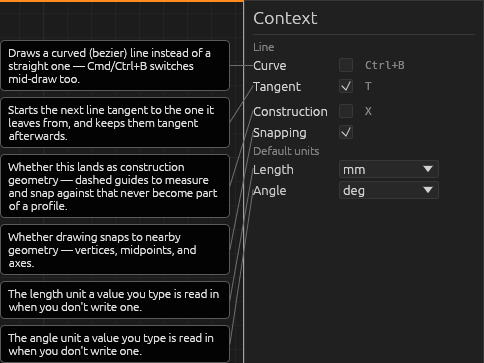
Line
Line
Shortcut: L
Click to start, move the mouse, click to finish a segment — or type a length and press Enter. The tool then chains: the next segment starts where the last one ended, so you draw an outline with successive clicks. Closing back onto the starting point (snapping grabs it) finishes the shape — and any closed outline becomes a face you can extrude.
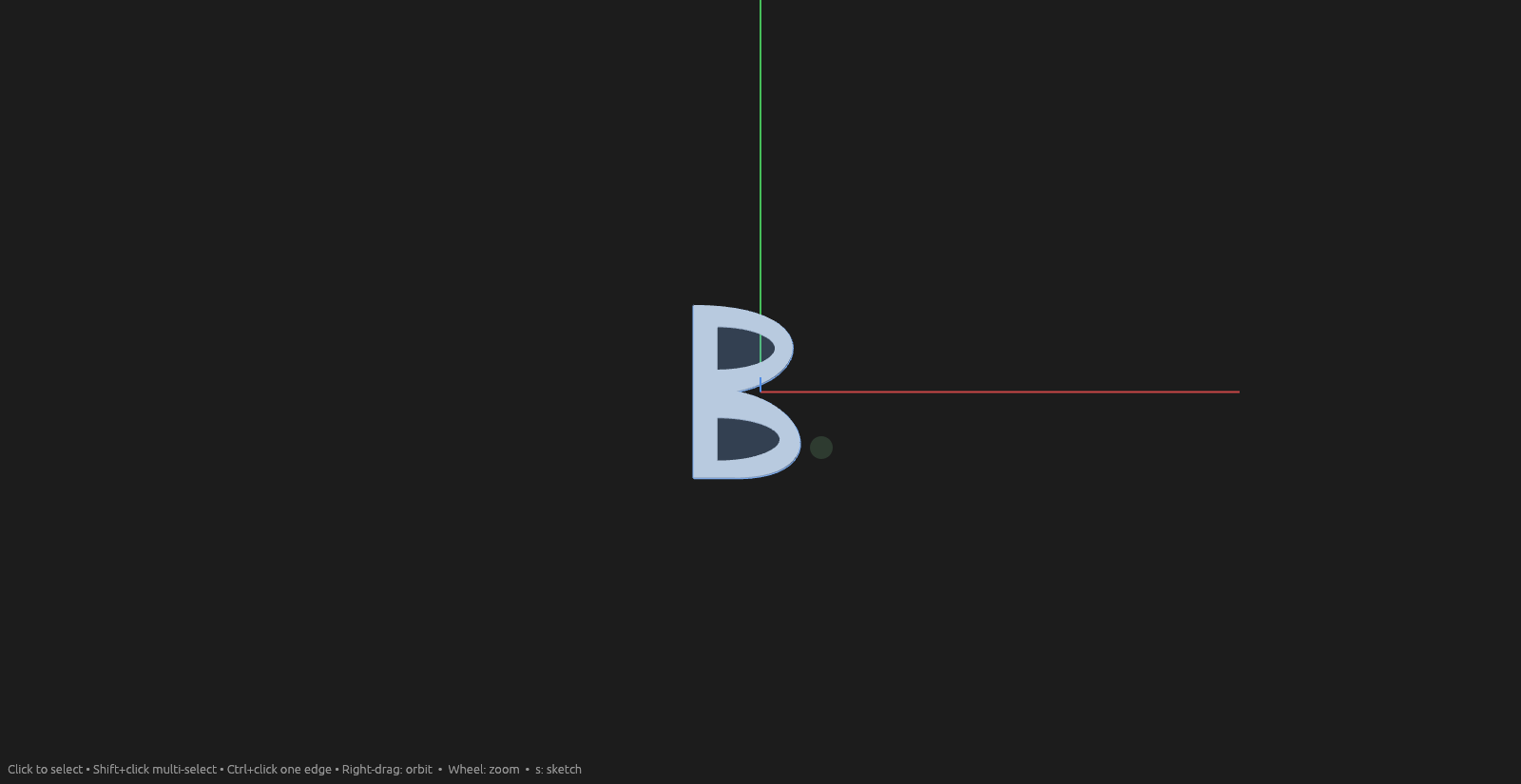
An extruded letter "B": outline drawn with the Line tool, extruded, and its two holes cut through.
Press Esc to stop chaining and keep what you've drawn.
Snapping
The cursor snaps to nearby endpoints, midpoints, and lines; finishing a point on a snap keeps that relationship as things move. On a round face the rim snaps as one circle. Touching a corner arms dashed guide lines along its edges, for lining a new point up with existing geometry at a distance. Snapping can be toggled in the Context pane.
Curves
While drawing, tick Curve mode (⌘/Ctrl+B) and the next point becomes a smooth curve point instead of a corner. On a finished sketch, drag a curve's two round handles (blue; gold when hovered) to reshape it — at a tangent joint the opposite handle follows so the joint stays smooth. Click a handle, or a selected joint vertex, to toggle the joint's tangent constraint on and off. Right-click a corner → Convert to bezier curve to smooth it (Straighten curve undoes). Deleting a handle straightens the curve.
Curved lines close loops, extrude, and take dimensions like straight ones (a length dimension controls the endpoint-to-endpoint distance).
Help