 Loft
Loft
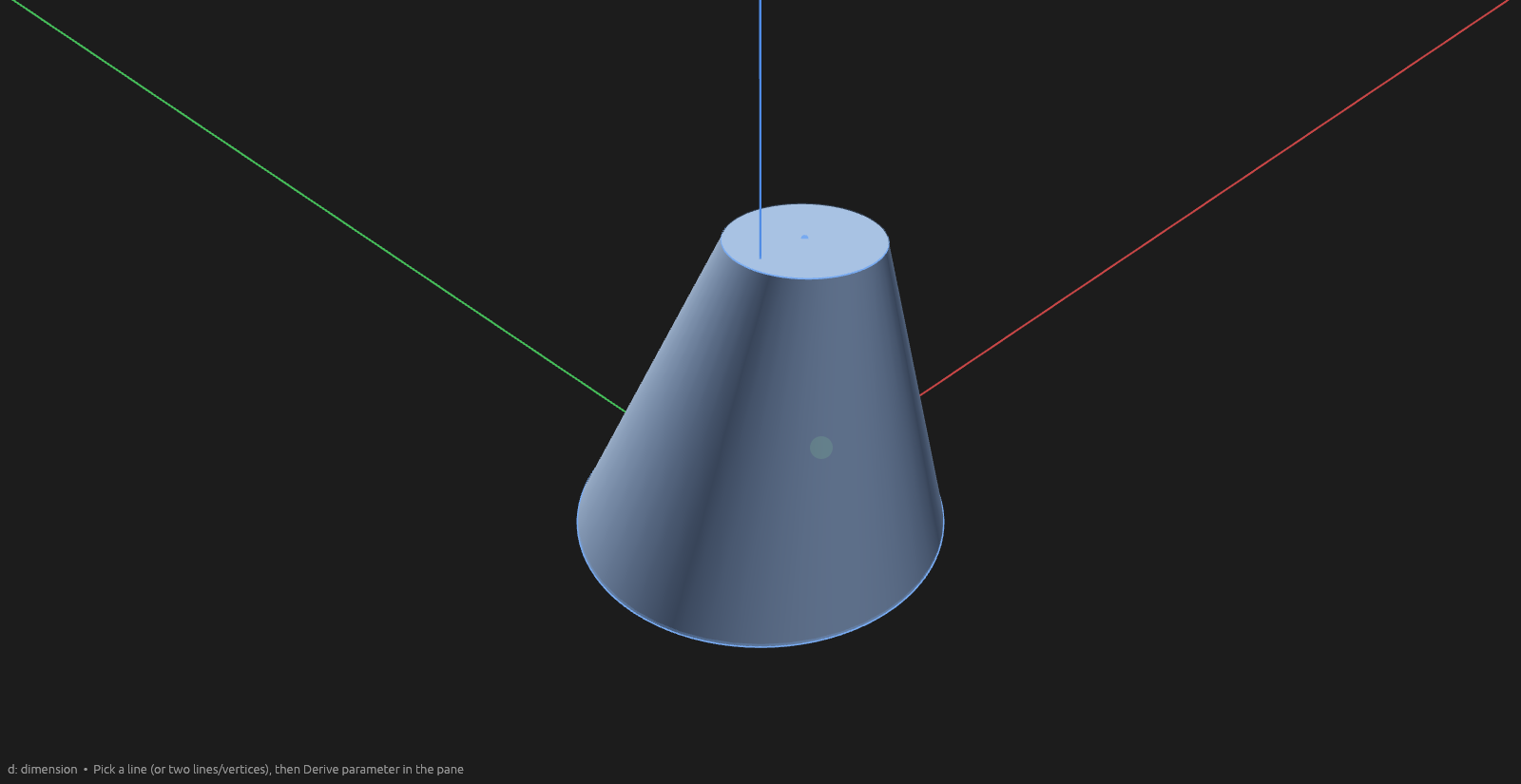
Loft blends a solid through two or more closed cross-section profiles on different planes — horns, hulls, funnels, transitions between shapes.
How to use it
- Sketch a closed profile (a circle or a loop of lines) on each plane you want the solid to pass through — use Construction Planes to stack section planes at the offsets you need.
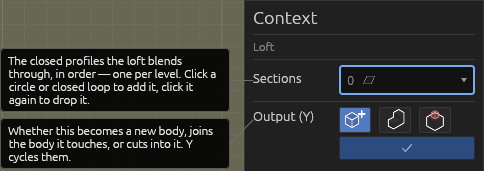
- Pick the Loft tool and click each profile — a click on any line of a loop picks the whole loop; clicking a picked section removes it.
- Choose where the result lands in the context pane — New body, Add to touching bodies, or Cut bodies (click the bodies to carve in the viewport) — the same three buttons Revolve and Sweep have.
- With two or more sections picked, press Enter. Sections blend in order along the loft's direction — pick order doesn't matter.
Good to know
- Sections can be different shapes: a circle can blend into a rectangle.
- The loft is parametric — edit a section profile (dimensions, position) and the solid reshapes to match.
- A loft undoes as one step, and appears in the Elements pane with its body.
Help
See Scripting.