 Repeat
Repeat lays out copies of bodies along a straight line — bolt patterns, studs along a wall, teeth on a rack.
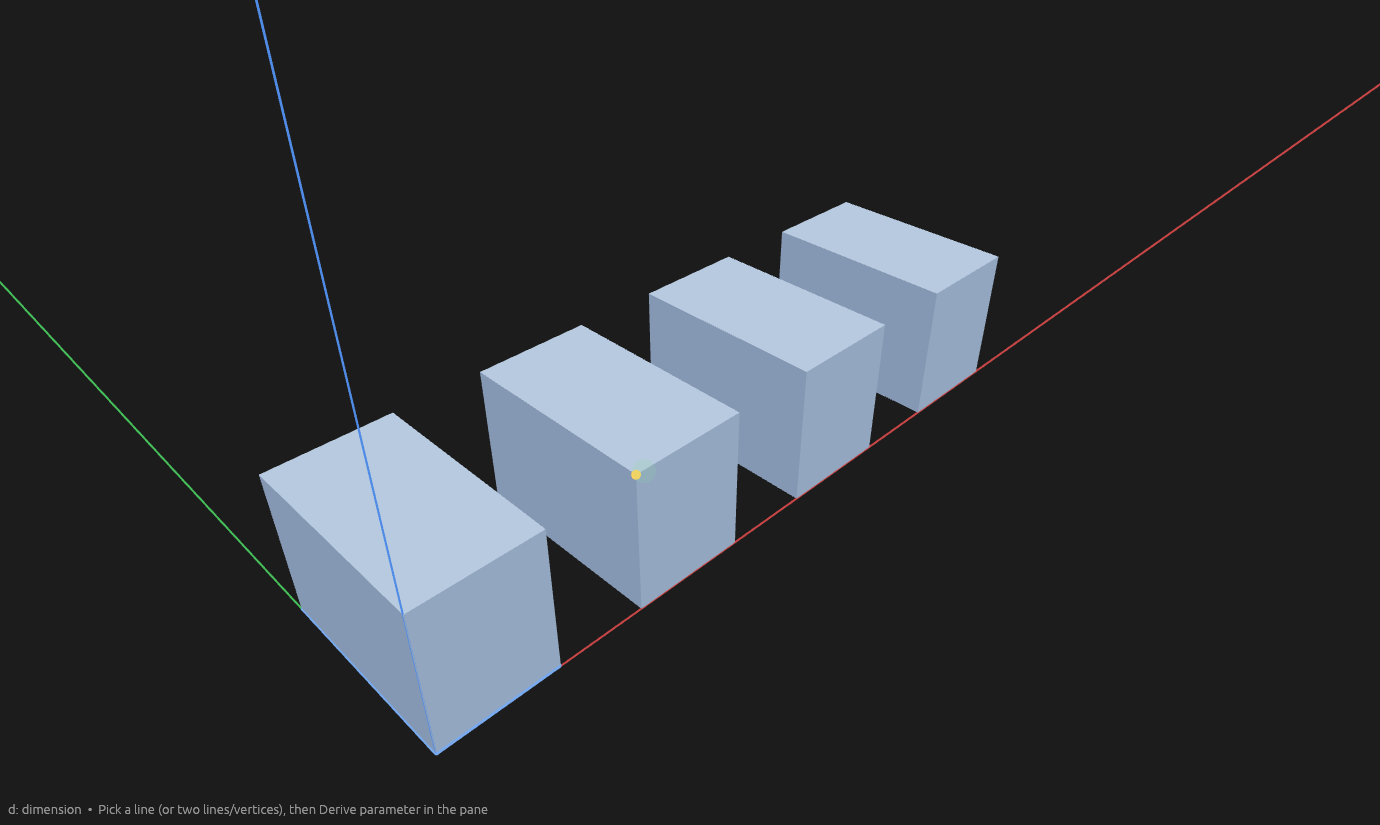
How to use it
- Pick the Repeat tool and click one or more bodies (a body selected beforehand is picked automatically).
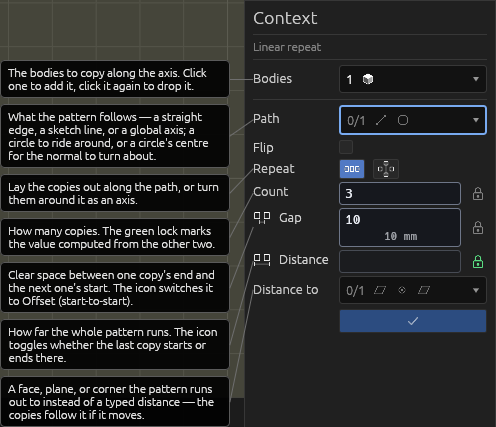
- Pick the path: click any body edge, sketch line, or origin axis in the viewport — each lights up under the cursor while the path is what you're picking. A circle's centre offers the circle's normal, for turning around it.
- Choose a spacing mode and fill in the values — every value is an expression, so parameters work. Ghost previews show the pattern.
- Press Enter.
A distance handle sits on the pattern along the axis: click it to grab, move the mouse to drag the distance out, click again to drop it.
Or measure the distance to something instead of typing it: focus the Distance to picker, then click a construction plane, a face, or a vertex. The pattern runs out to it and follows it if it moves. The picker's ✕ hands Distance back to the number.
Count, Offset and Distance are interlinked: two are yours to set and the third is computed. A green lock marks the computed one; click a grey lock to move it there. Clicking the Offset or Distance label (or its icon) switches how that value is measured.
The originals stay put as the first instance; every copy is a real body nested under the repeat element. Edit repeat on the element changes anything later.
Which way along the path
A path runs both ways, and picking one doesn't say which you meant. Tick Flip under the Path picker to send the copies the other way — back along a straight axis, the other way round a turn, or from the far end of a curve.
Around the path
Under the Path picker, two icons choose how the copies run: along the path, or around it as an axis of rotation. Turning replaces Distance with Angle (360° by default) — Count, Gap and Angle interlink exactly as Count, Gap and Distance do — and the distance handle and Distance to picker stand down. Click the Angle icon (or label) to toggle where the last copy sits: at the angle (a 360°/5 pattern stacks the fifth on the first) or ending there so five items space 72° apart.
A circle's own normal is the easiest axis to turn about: with the Path picker focused, hover the circle's centre and its normal appears; click it and the pattern turns around it. Since that is the only thing a normal is for, picking one switches to around.
Along a curve
Pick a curved line — or a circle — as the path and the copies follow it, spaced by distance along the curve. They keep their orientation as they go, and a curved path is always followed: the "around" option is off for it (that's what the rotational mode is for, and it turns the copies as they go).
Spacing modes
| Mode | You give | Meaning |
|---|---|---|
| Count × gap | N, D | N instances with a clear gap D between them. |
| Count fit (to end) | N, L | N instances spread evenly; the last one ends at L. |
| Count fit (start-to-start) | N, L | N instances; the last one starts at L. |
| Fill length, gap | L, D | As many instances as fit in L with gap D. |
| Fill length, pitch | L, D | As many instances as fit in L at start-to-start pitch D. |
| Fill length, max pitch | L, D | An instance lands exactly at the end of L, spaced evenly, never farther apart than D — stud spacing. |
Repeating construction planes
With the Repeat tool active, click a construction plane in the Elements pane. Copies step along the axis, nest under the repeat element, and follow the original plane if it moves. Bodies and planes can repeat in the same operation.
Repeating sketch geometry in 2D
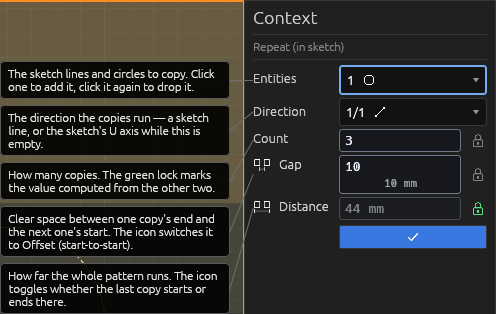
With a sketch open, Repeat copies lines and circles along an in-plane direction, with the same spacing modes and the same context pane.
Click the entities to copy — they collect in the Entities picker. The Direction picker takes one sketch line; while it's empty the copies run along the sketch's own X (u) axis. Focus it and click a line, or Shift+click a line at any time. Count, Gap and Distance work exactly as they do in 3D, green lock and all. Double-click the operation (or right-click → Edit) to reopen it.
Repeating a cut (drilling a row of holes)
A repeat can replay a cut along the axis — one hole becomes a row of holes. Spacing is centre-to-centre, and each extra hole ghosts where it will be punched.
Repeating a new-body extrude (one that isn't a cut or a merge onto another body) makes one body per instance — disjoint copies stay separate, and each can take its own material.
Repeating a whole sketch along an axis
Copy an entire sketch along an axis — each copy lands on its own parallel construction plane with copies of the sketch's lines and circles. With the Repeat tool active, click a sketch, set the axis and spacing, and commit. Delete the repeat element and the copies go away.
Help
See Scripting.