Select
Shortcut: none — it's the default. Esc (with nothing in progress) always returns to Select.
Select is for looking and picking, never for creating. Right-drag orbits, Shift+right-drag pans, the wheel zooms, clicking picks.
What you can pick
- Sketch points — endpoints, corners, circle centers. Points win over the edges they sit on.
- Lines and edges — in sketches and on bodies. An edge picks together with every edge running smoothly out of it: a straight line that breaks into a tangent curve and leaves again as a tangent line is one click, and so is the circular rim of a revolved body. The run stops at corners and where three edges meet. Hold Control for just the one edge.
- Whole bodies — click any flat face of a body to select the body. Edges and corners win over the body they belong to.
- Faces — of construction planes, and of bodies through the Selection Exploder.
You can't select things hidden behind a body.
Picking from a crowd — the Selection Exploder
When a tiny vertex or edge is buried in a cluster of overlapping things, press Space and everything under your cursor fans out into spaced-apart handles you can pick without guessing. See Selection Exploder for the full walkthrough.
Resizing a construction plane
A selected construction plane shows a grip on two opposite corners; drag either one to resize its rectangle.
Materials
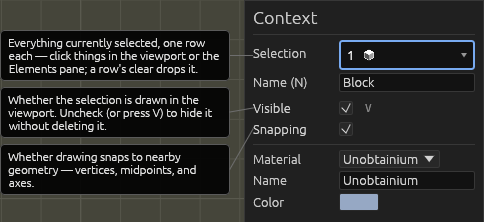
With bodies selected, the context pane's Material dropdown says what they're made of. See Materials.
Selection feeds the other tools
Most tools act on the selection: select two lines and Constraint's Parallel lights up; select a line and press D to dimension it; select edges and press F to fillet. Shift+click adds to a selection.
The Elements pane mirrors the selection and offers three views — list, tree, and a dependency graph. Right-click a body (in the pane, or on the selected body in the viewport) for Make shadow body / Make live body: a shadow body is hidden in the viewport (except while hovered or selected) and omitted from whole-document export. The viewport right-click on already-selected geometry is the same menu as the pane row.
Reviewing the selection
The context pane's element picker summarizes the selection by kind (e.g.
2 ⟨line⟩ · 1 ⟨body⟩); click it to list each element, remove any, or Clear all.
Every tool that gathers elements uses this same control. One picker is armed at a
time; clicks go there. Tools step through their pickers for you, or click a picker
to arm it.
A picker only takes what it's for. What it turns down goes to the tool's first picker, so the main set stays reachable. Where a picker wants edges and you click a face, you get all of that face's edges. Switching tools keeps picks the new tool accepts and drops the rest.
With nothing selected, the context pane holds the document's Default units. Delete removes the selection; N jumps to the name field for renaming. V toggles whether the selection is visible (same as the Visible checkbox in the context pane).
Help