 Shell
Shell
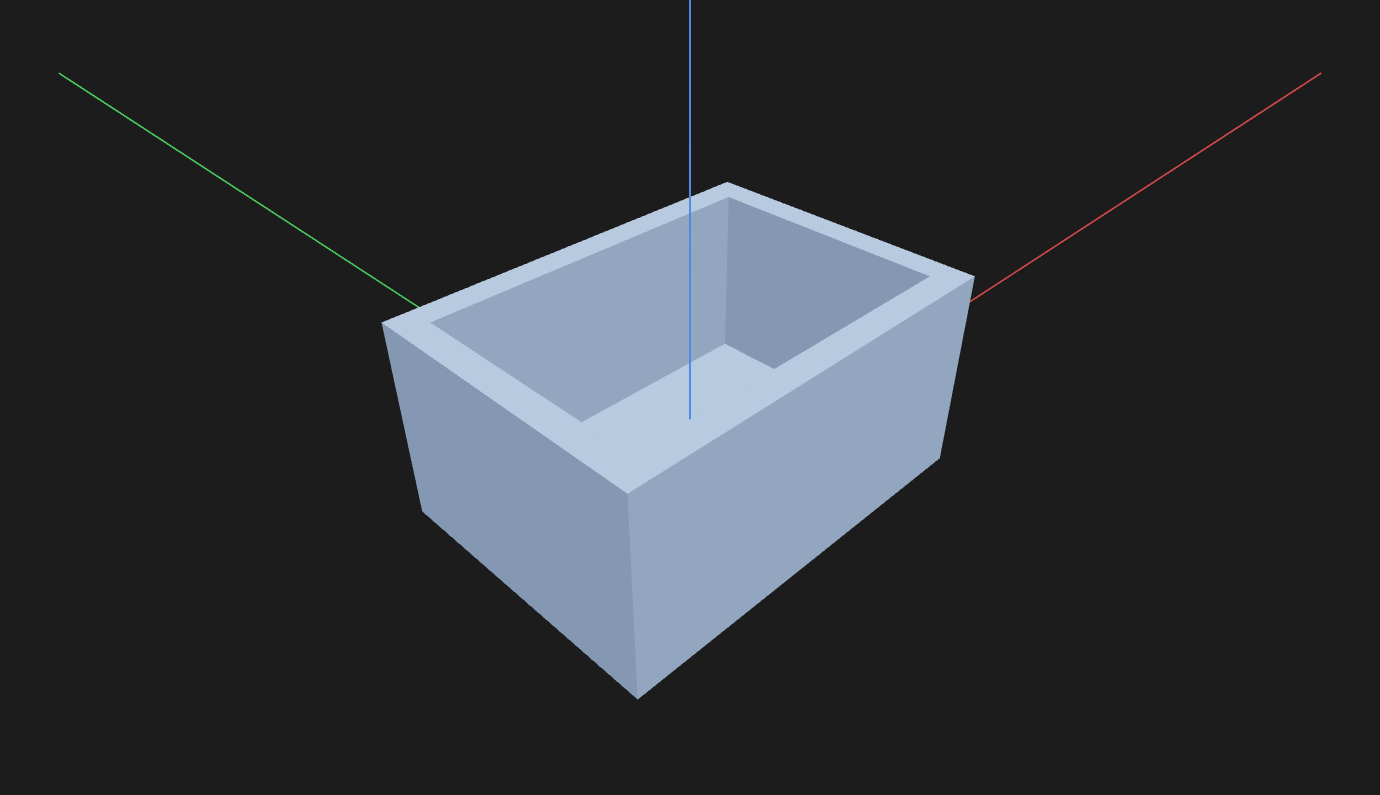
Hollow a solid to a wall thickness. Optionally open faces so the inside is accessible.
How to use it
- Pick the Shell tool and click one or more bodies (Bodies).
- After the first body, focus moves to Open faces — pick faces on the selected bodies to remove (leave wall thickness around them). Adjacent open faces also remove the shared wall.
- Set Thickness (mm expression) in the context pane, or drag the push/pull handle on a face (first open face, else a body face). Clicking the handle focuses Thickness for overwrite typing.
- Press Enter.
While you pick, the hollowed result (what remains) previews semi-transparent on the target bodies.
What you get
Each hollowed solid is a new body nested under the shell element. The input lives on as a shadow body. Edit shell re-opens the pickers and thickness; deleting the shell restores the input.
See Scripting.