Sketch
Shortcut: S
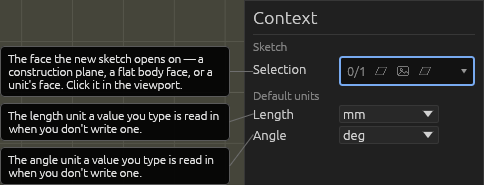
Everything in BearCAD starts as a 2D sketch drawn on a flat surface. The Sketch tool picks that surface: click the ground plane, a construction plane, an imported image, or any flat face of a solid body, and the camera turns to face it head-on. The Line, Rectangle, and Circle tools then draw onto it.
While a sketch is open, the viewport has a bright orange border so you always know you're in sketch mode. Press Esc (with nothing in progress) to leave the sketch.
Notes
- Sketching on a body's own face ties the sketch to that body: it moves with it, and the face's corners and edges can be dimensioned against directly.
- A sketch selects only its own geometry: while a sketch is open, outside bodies and other sketches stay out of reach — hovering and clicking touch just this sketch's shapes, its origin and axes, and the sketched-on face's own edges and corners.
- Project outside geometry in: in sketch mode, P activates Projection — select outside edges (or a face/vertex for the whole body), press Enter (or the blue commit button), and they land as solid cyan projected lines that follow their sources. Select only projected lines and press Enter to remove them.
- When faces overlap under the cursor, the one nearest the camera wins — you never pick a hidden face by accident.
- Click an existing sketch's face with the Sketch tool to reopen it for editing.
Help