 Text
Text
Text places engraving-ready lettering in a sketch as glyph outlines you can edit, rotate, and extrude or cut like any other profile.
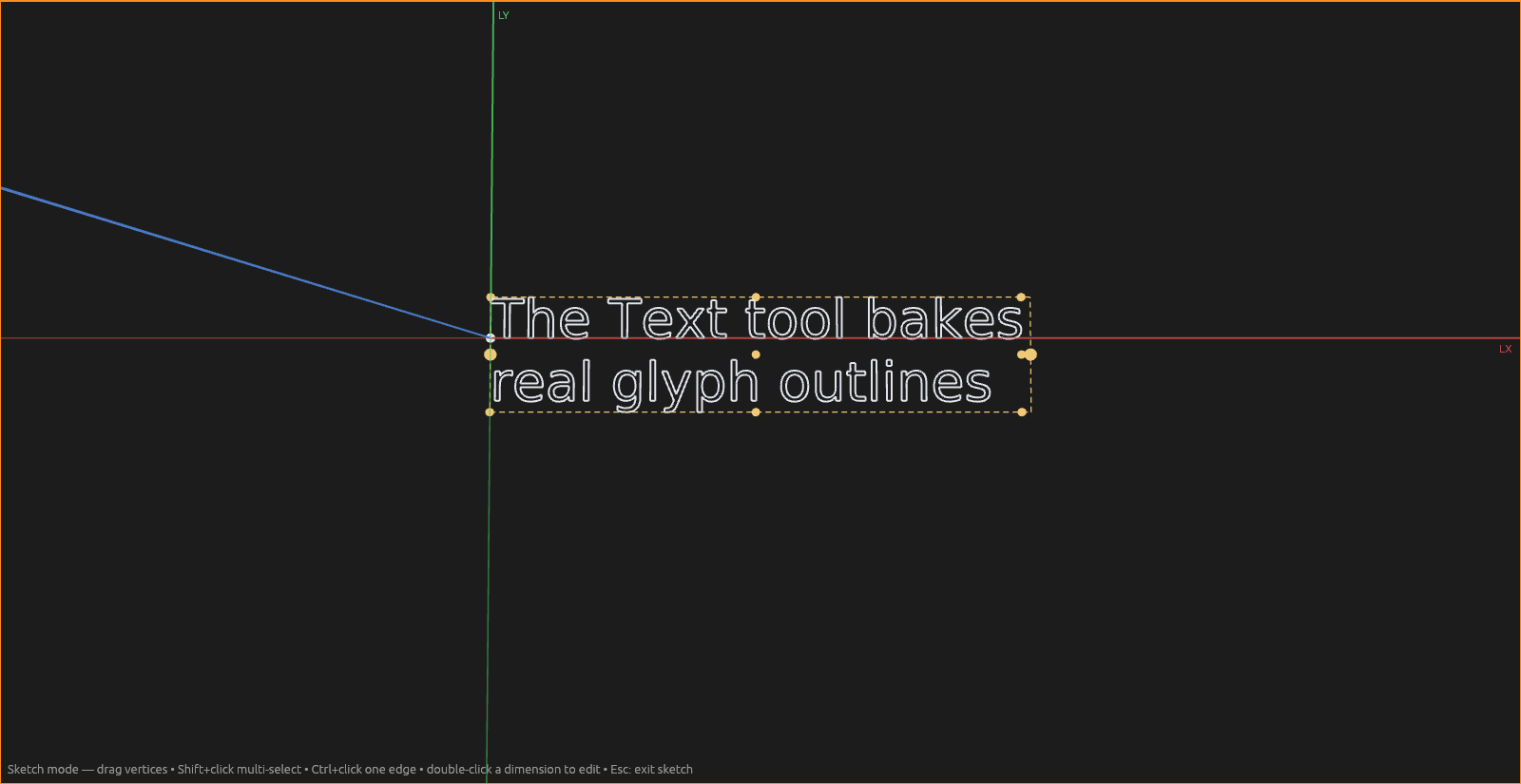
How to use it
With the Text tool (T) in a sketch, click where the text should start for a box that grows to fit, or drag a rectangle for one that wraps text to that width. Type in the editor that opens; the outlines re-bake as you type. With no sketch open, click any face or plane to start a sketch there.
The text editor
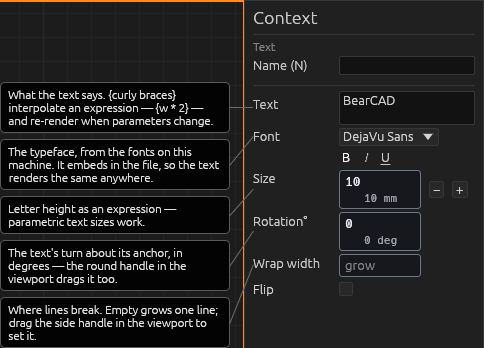
- Text — multi-line. Embed parameters in curly braces:
Bore {d}re-bakes wheneverdchanges. Any expression works ({d / 2});{{prints a literal brace; Tab accepts the completion popup. - Font — any installed font family. B / I / U toggle bold, italic, underline.
- Size — font size in mm; an expression field, so lettering scales with the model.
- Rotation° — turns the text about its start point. While creating or editing, drag the rotation handle around the origin to turn it live.
- Flip — mirrors the letters about the box centre (stamp / mould reading).
- Wrap width — empty grows to fit; a width in mm word-wraps. A selected wrapped text shows its box dashed with a drag handle on each vertical edge — drag to resize the width (the opposite edge stays put).
Constraining text
A selected text shows nine anchor dots — the box corners, edge midpoints, and center. Each is a regular sketch point: with the Constraint tool, click an anchor and another point and press 4 (Coincident) to hold the text there as the model changes. The text translates to follow; other geometry stays put. Dragged points also snap onto anchors.
Rotating
The Text tool shows a rotation handle around the origin while a text is selected (just placed, or being edited). Drag it to turn the text; the Rotation° field follows. The Move tool shows the same handle.
Fonts travel with the file
The document embeds the font data and baked outlines, so the file renders identically on machines without the font.
Extruding and cutting text
The Extrude tool treats a text as one face set: click it, then pull
it out or push it in to cut (engraving). Letter counters — the holes in o, a —
stay holes.
Help
See Scripting.