Tracing images
Import a photo, scan, or datasheet drawing, tell BearCAD its real-world scale, and trace over it with the normal sketch tools. The image is saved inside the document and behaves like any other element.
Importing
File → Import Image… places a PNG or JPEG on the ground plane. For a different plane, select it and run Import image on this plane… from the command palette, or right-click it in the Elements pane. Import selects the new image so you can calibrate it right away.
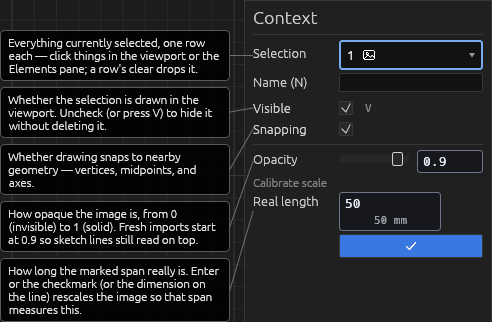
Images draw slightly translucent (0.9 by default): bodies in front hide them, but sketch lines stay visible on top. Select an image to change its opacity with the slider.
Setting the scale
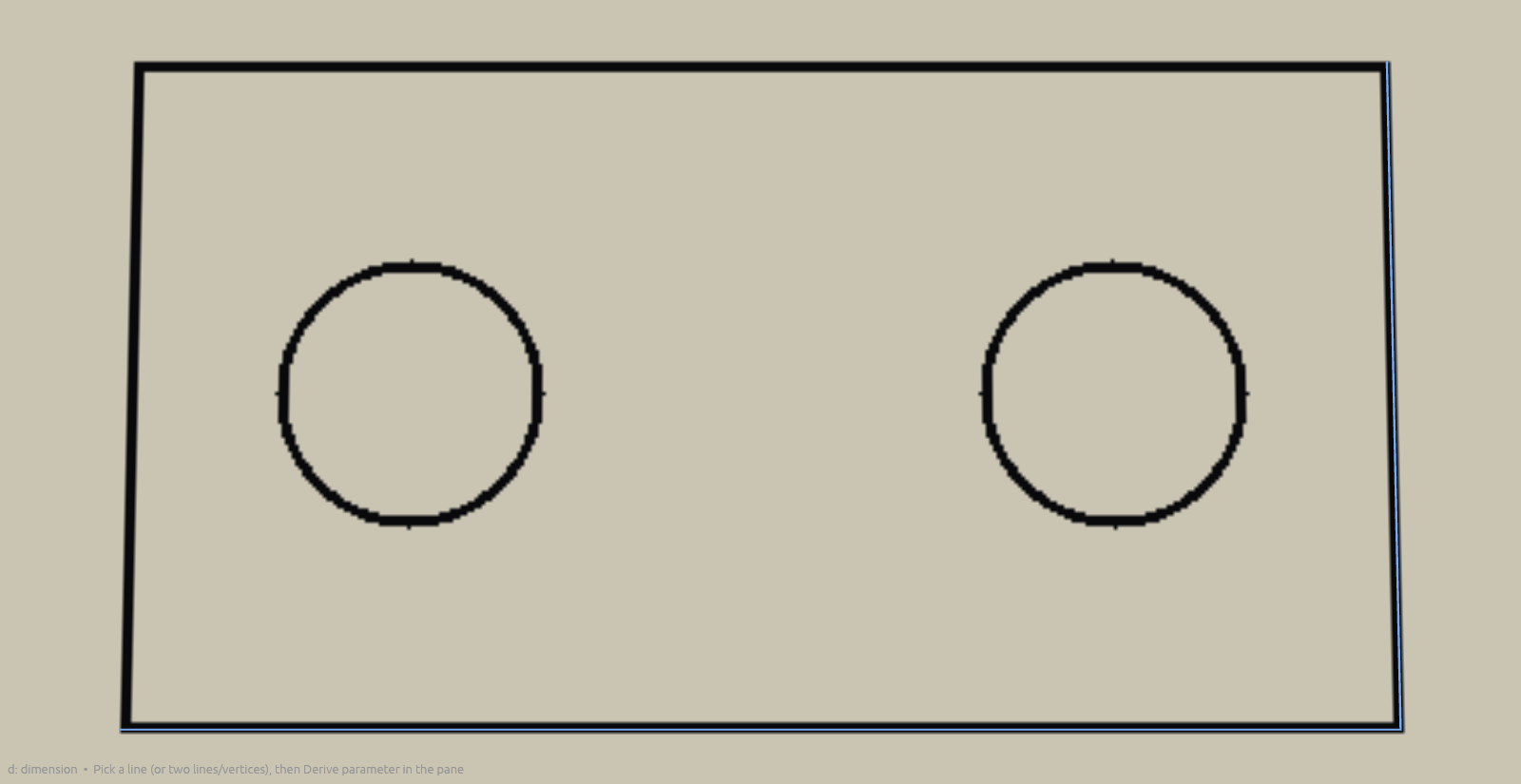
While the image is selected, a line appears from the top-middle of the image to the bottom-middle, with a dimension that cannot be removed.
Drag the endpoints onto a feature whose real size you know. Type the real length in the context pane and press Enter (or the checkmark), or double-click the dimension — any expression. The image rescales so those two points stay on the same spots of the image and the line measures that length.
Moving and constraining
The Move tool moves an image: click its quad in the viewport (or its Elements pane row) to pick it, then set the translation. The move stays in the image's plane — the two in-plane axes and a turn about the plane's normal — and the quad previews it as you go.
The image's corners, edge midpoints, centre, calibration points, and edges are regular sketch geometry: with the Constraint tool in a sketch on the image's plane, hold a point coincident to a vertex, a line, or the origin/axes — the whole image translates to follow (scale never changes). Pin sketch geometry to an image edge to hold it on the picture.
Tracing
Click the image with Sketch, Line, Rectangle, or Circle to start a sketch on its plane and trace what you need. Because the image is calibrated, the traced geometry is in real units — dimension it, extrude it, print it.
Help
See Scripting.